I have recently decided to restart this blog of mine. The idea is that I’ll try to semi-regularly post “What I learned Recently” posts. While these posts can be from any topic, they will probably be around software development, competitive programming and mathematics. For the first post, I decided to write about Hugo, the tool that I have used to generate this blog itself! Now as the title says, this is something that I learned recently, so this article probably won’t be that deep, but I hope you’ll like what I have to share.
An Introduction to Hugo
As the official site states, Hugo is a fast static site generator built with Go. Static site generators are tools used to build websites centering around content easily. The idea is that you’ll put your content in something like markdown, free from complexities of HTML or CSS and the generator will build the static website for you. Let’s use Hugo to build a very simple site to see how this happens. The following section is more or less taken from the quick start page of official documentation.
To use Hugo, you will of course need to install it, you can find the instructions in the official documentation. But an advise, if you’re using Debian, don’t go for the apt install, at the time of writing, it is not up-to-date. Rather try the snap install. Once installed, you can create a new “site” by running following instruction
hugo new site <folder-name>
This creates a folder containing scaffolding for a bare bones Hugo site. But Hugo doesn’t provide a html layout for you to begin with. Rather you install pre-built Hugo themes created by other people. Following the docs, we’ll add the Ananke theme. A good convention is to manage the theme using git submodule. So initilize the folder as a git repository and add theme as submodule into the themes/ananke folder.
git init
git submodule add https://github.com/theNewDynamic/gohugo-theme-ananke.git themes/ananke
You will also need to change some configs in the hugo.toml file in the root of your site folder. In particular, update the toml file to change the title value to your liking and add theme = 'ananke' to let Hugo know to use the theme.
To create a post in this site, run the following hugo command which will create a markdown file.
hugo new content posts/<url-to-post>.md
You will then find that content folder has this markdown, change it up a bit with following content
+++
title = '<whatever-you-want>'
date =  '2024-02-03T23:56:44+06:00'
+++

Yayyyyyy, this is my first post, that I've made using Hugo!
Notice the toml part between the +++, this is called the front matter, it’s used to inject stuff, add metadata or manipulate the generated html. We in particular removed the draft = true to make the post visible in our site.
To see this new post, you can now just run hugo serve which will start a local serer in 1313 port where you can see your new site. But this is only a local development server, to actually build the site (i.e. the html and other stuff), run hugo build. That’s it!
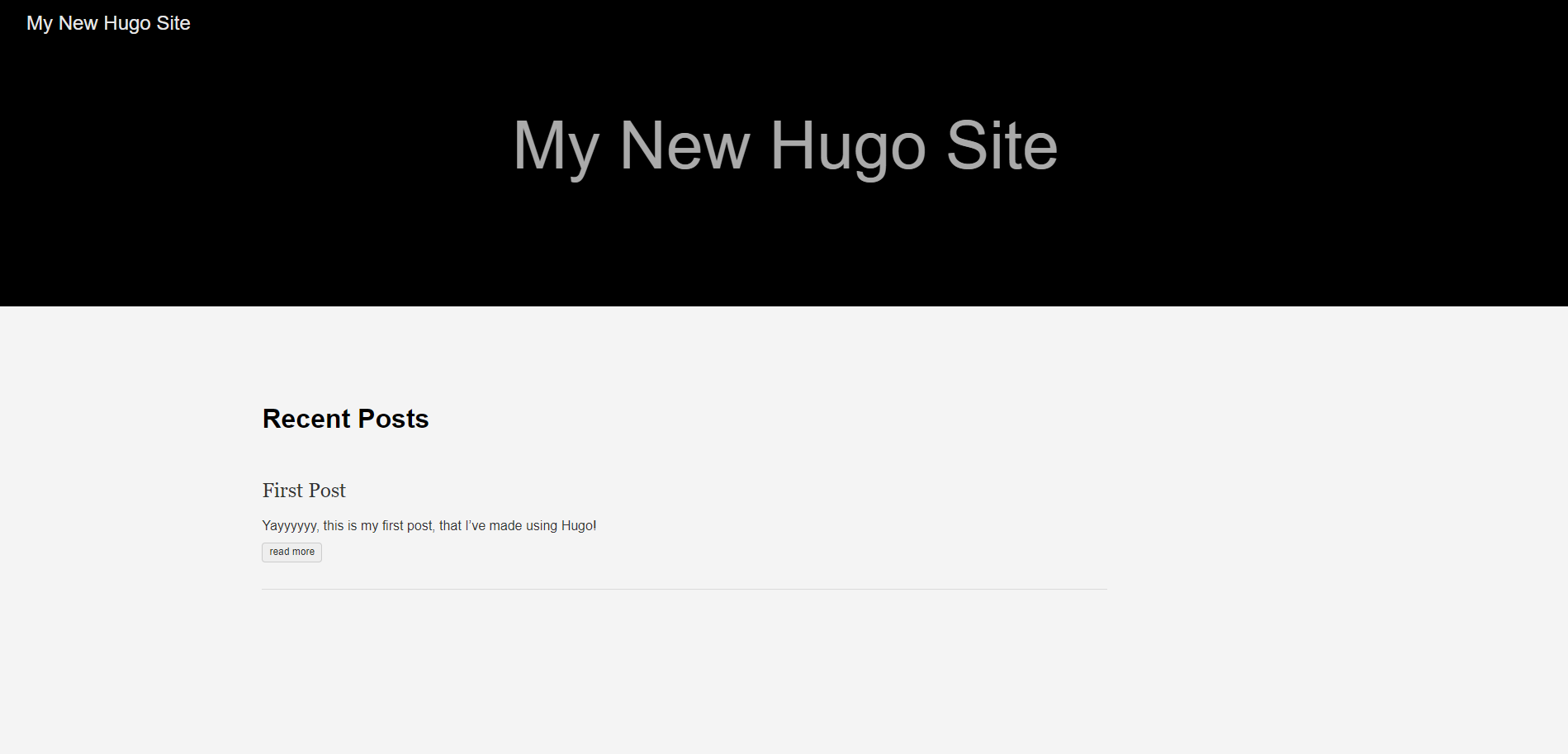 The homepage
But What is Hugo Really Doing?
The last part is all good and well, but if you’re like me, you want to know what is making Hugo build the website just from that one markdown. Can it be customized to add more pages? Different kind of pages? Different styles? All of these are answered in the official documentation in detail. But I present a short summary of some key points. First thing to note are the files and folders created by Hugo. Some folders are self explanatory, like assets is used to store javascript or css and static is used to store static media files like images. But the first point of customization is the hugo.toml.
Hugo uses the hugo.toml file to set configuration for the whole site. Hugo supports Yaml and Json too, the tool just uses Toml format as default. In the config file you will find parameters like baseURL, title, theme and others. It’s also possible to specify custom parameters that can be injected to the site.
When you run hugo new content, Hugo makes a markdown file in content folder following the template markdown archetypes/default.md. In particular, you can set up several such template markdowns in archetypes folder. Based on folders inside content these templates are used. Hugo uses the relative path from content folder to file to create the urls. It’s also important to note that Hugo divides pages to two major types: single pages and list pages (there are exceptions). When you make a markdown file, you are making a single page, like above. But Hugo also auto generates list pages for direct child folders of content. So you can actually go to the url /posts/ in above example, where you will find list of posts. You can also force list page for any folder by making a _index.md file in the folders, but most of the time, that’s unnecessary. While home page is treated like a list page, it’s possible to treat the homepage differently. There is also something called Taxonomies, but that’s a bit out of scope of this article.
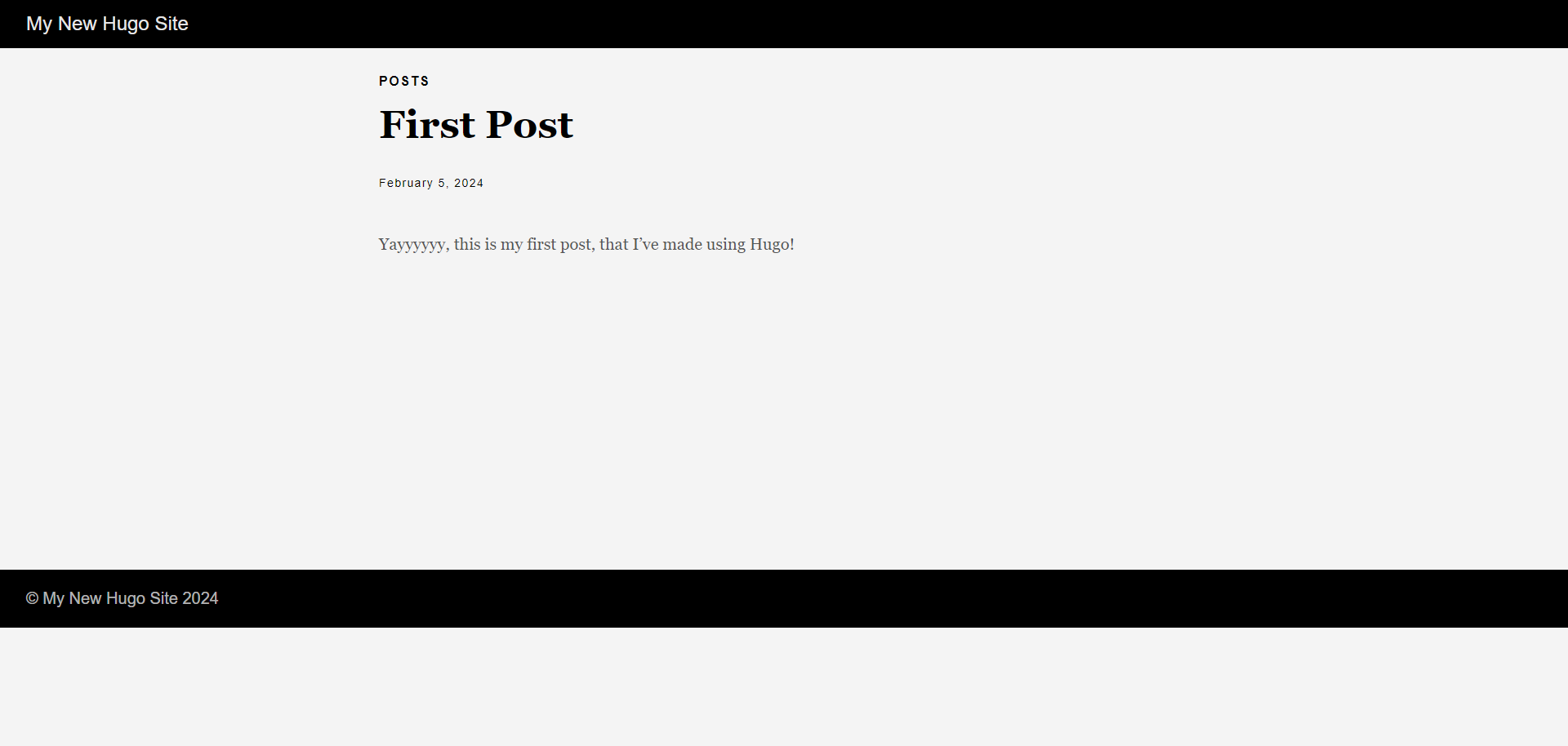 Single page
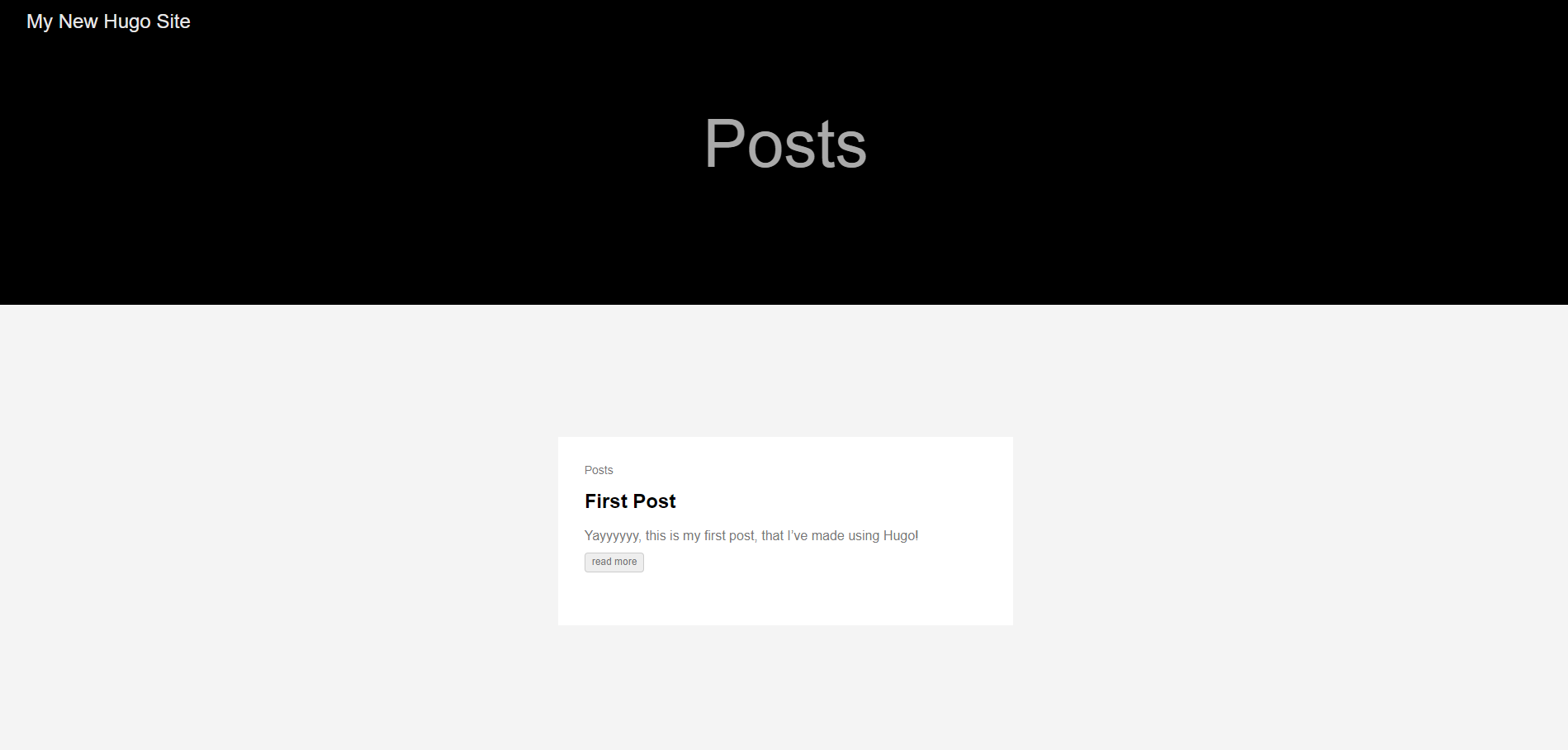 List page
So Hugo has pages, how does it then build the beautiful website? Hugo first looks into your layouts folder. More specifically it looks at the layout/_default/single.html and layout/_default/list.html. In place of _default it can search based on child folders of content too. So you could replace _default with posts in the above example. When Hugo sees that these htmls are not present, now it falls back to the theme. It knows from the configs, that theme is ananke, so it’ll now look at themes/ananke/layout folder. If you take a look at the single.html there you will find lots of html mixed with things in {{ }}. This is Go’s templating. Hugo renders the html using the page’s content, front matter, location and site configs. In particular here is a very minimalist code for such template file
<h3>
    {{- .Title -}}
</h3>
<h4>
    {{- .Date | time.Format "January 2, 2006" -}}
</h4>
<p>
    {{- .Content -}}
</p>
I won’t explain the details, but I think you get the gist here. Similarly the list page (which for ananke, is the _default/list.html, do not get confused due to there being post folder, that won’t apply as our folder is posts) utilizes ranges
<ul>
{{ range .Pages }}
    <li><a href="{{ .Permalink }}">{{ .Title }}</a></li>
{{ end }}
</ul>
Here Hugo will traverse over all nested pages (not necessarily single, not necessarily direct child) and list them. List pages can also utilize {{- .Content -}}, if there is a corresponding _index.md. There are lots more intricacies and templating functions. You can find those in the documentation of course.
Also note that themse generally utilize baseof.html, a base html which defines html skeleton. The single.html or list.html utilizet these automatically, plugging in their parts in blocks. There’s also partial templates meant to be composable for DRY patterns. And, for home page, you can customize it by using the index.html just inside layouts. Enough templating for now, go to the docs if you want to know more.
Other folders such as i18n is used for internationalization and data for keeping data files as json or similar. There are many other concerns like latex for maths or taxonomies (the tags you see in this blog), but trying to cover all in one article will be foolish. Also I don’t know everything myself, hehe.
Ending Note
At first, I was quite puzzled with how things are wired in Hugo, but with usage, that has lessened. For purposes like where I just want to play around with making my own blog, Hugo seemed like the perfect tool. Also you don’t have to build the html or css, you can use one of many prebuilt themes from Hugo themes collection. This blog is made using the theme gokarna, I am sure you will find something suitable for you too.
I hope you found this article little bit of help, so that you can start using Hugo too!
I try to share things that I have learnt recently, and in the process, I can obviously make mistakes, so if you think you found something wrong feel free to create a issue in the github repository for this blog.